
Triggers
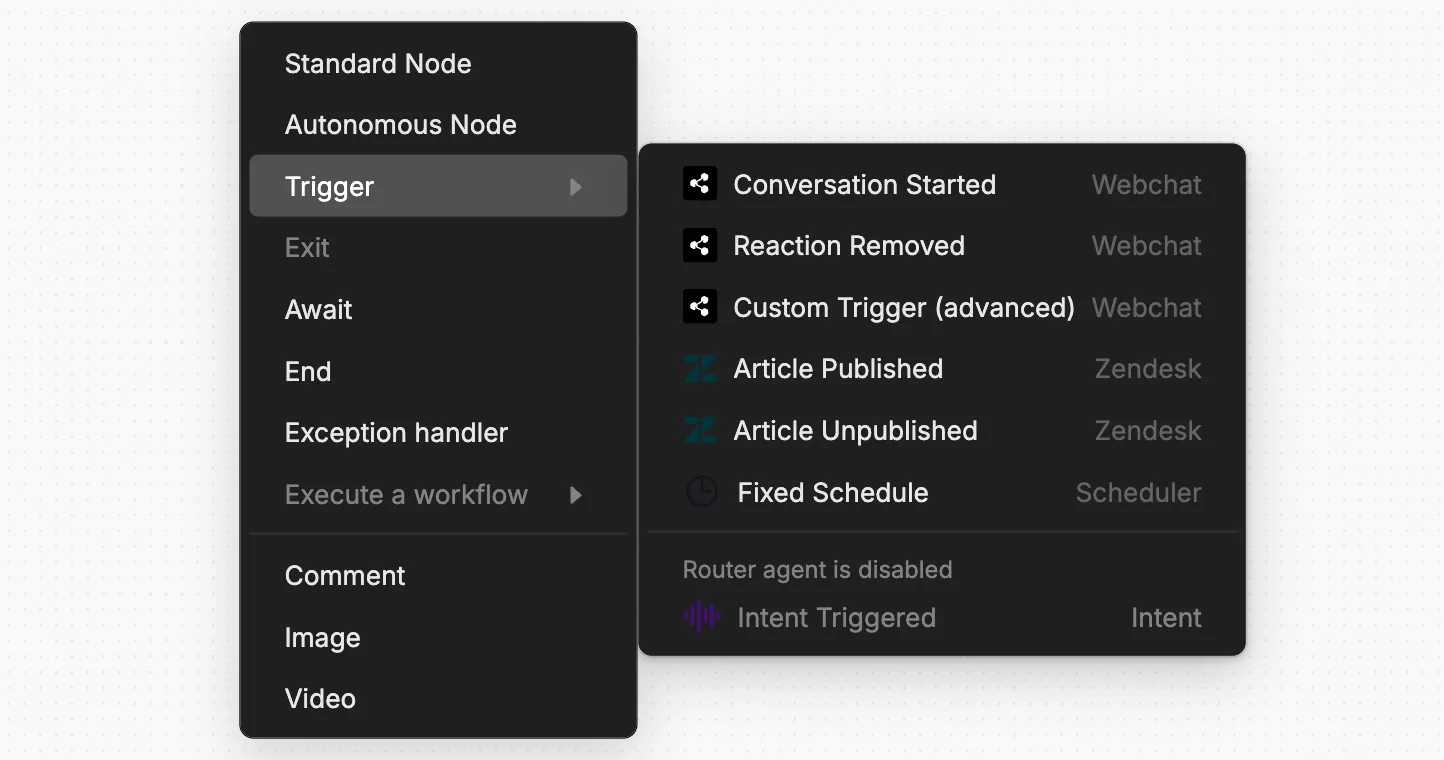
Triggers are a special kind of Node that only execute when a certain event occurs. You can recognize Triggers by their distinctive purple colour:

Triggers are useful if you want your bot to:
Limitations
- Triggers won’t work in the Studio’s emulator, even when the event they’re expecting occurs. Instead, you can test them before publishing.
- Triggers won’t work while your bot is waiting for user input from a Capture Information Card.
Triggers vs. Nodes
Triggers are different from regular Nodes in a few ways:
- You can’t transition from a regular Node to a Trigger. Any Triggers in your Workflow will only execute when the event they listen for occurs.
- Unlike other Nodes, you can’t add or remove Cards from a Trigger. Each Trigger is built around a single Card that determines when it executes.
Add a Trigger
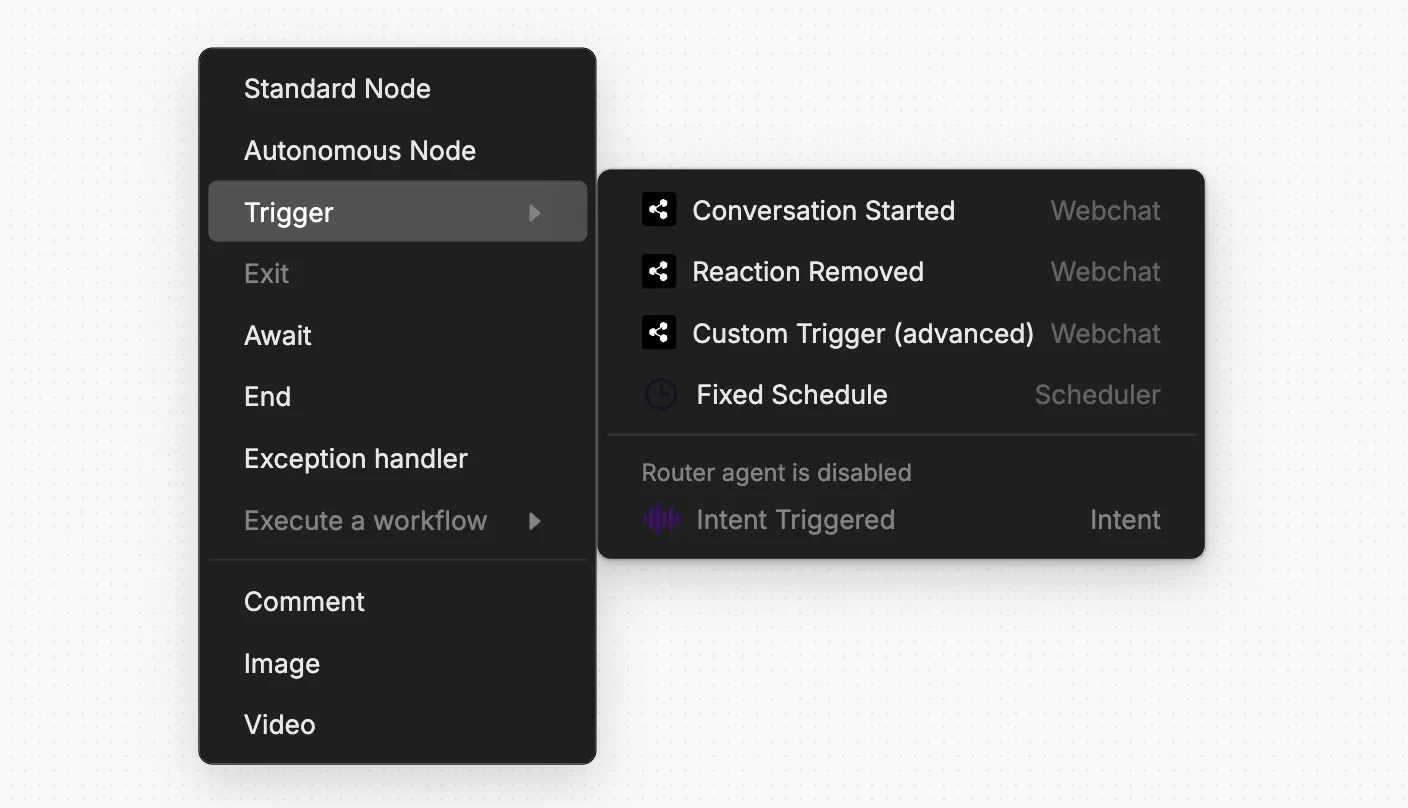
To add a Trigger, just right-click anywhere in a Workflow:
Test a Trigger
Triggers won’t work in the Studio’s emulator, even when the event they’re expecting occurs. Instead, you can use a previous event to test your Trigger.
For example, to test the Conversation Started Trigger:
Add the Trigger to your Workflow
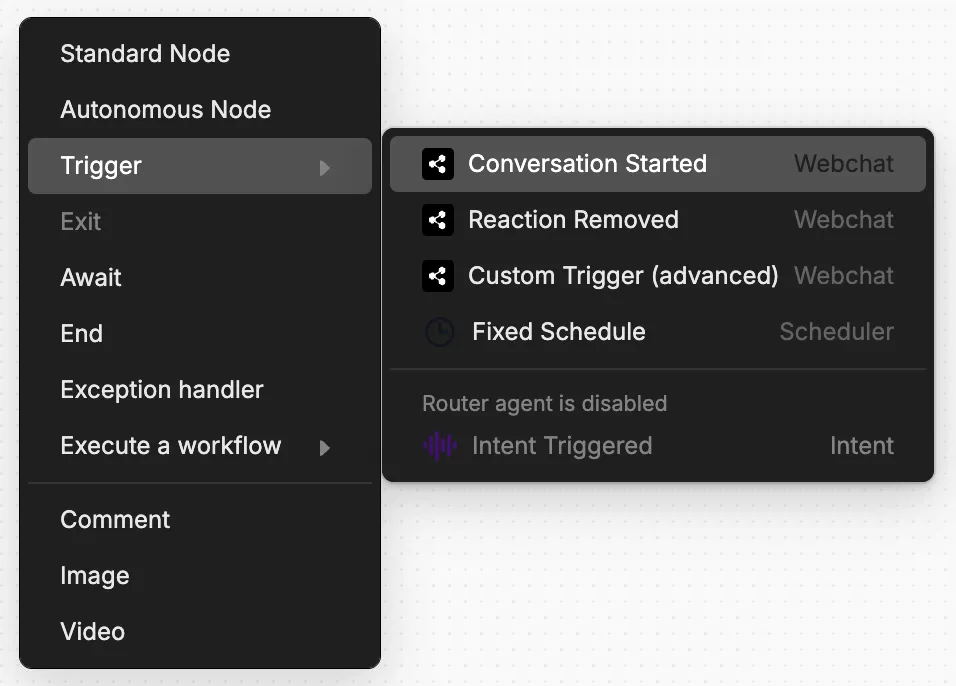
Right-click anywhere in your Workflow. Select Trigger, then Conversation Started:
Configure a test
Select Test in the bottom-left corner of the Trigger:
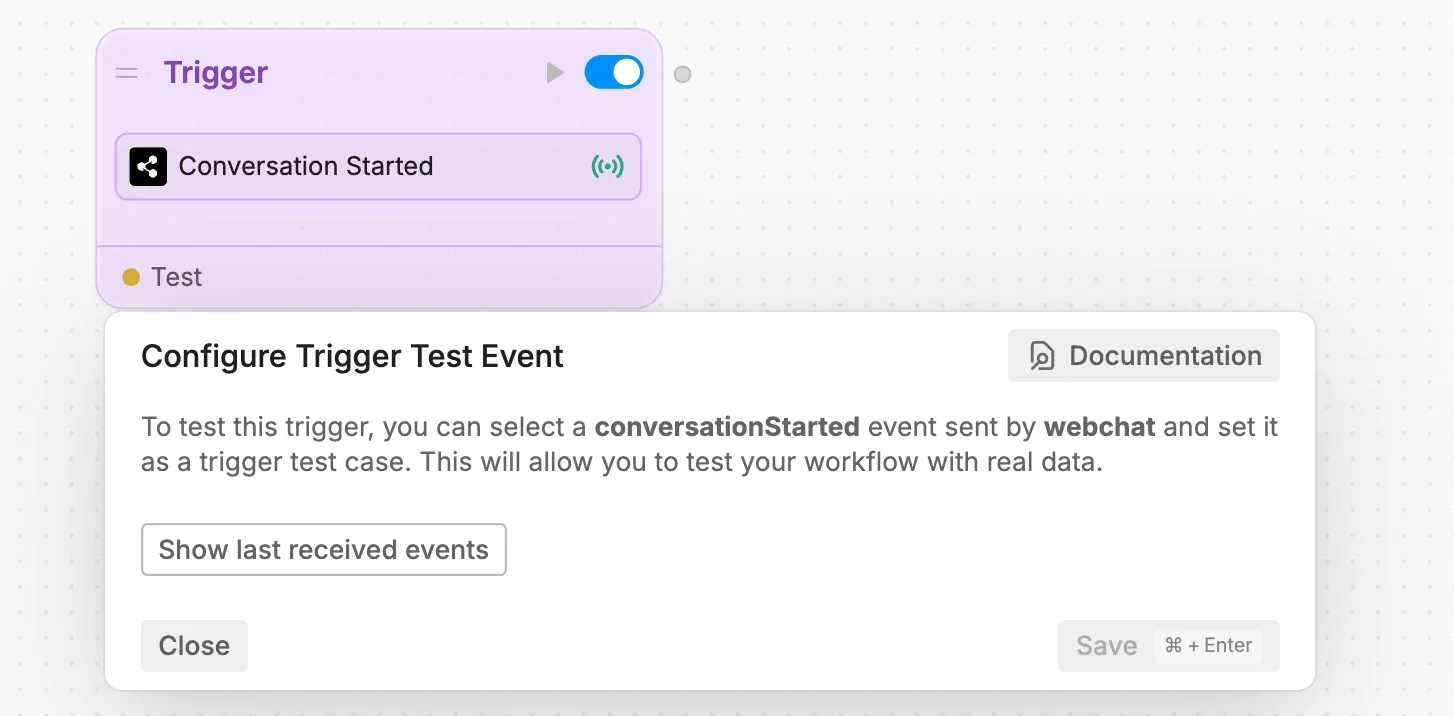
Then, select Show last received events. This will display a list of past events that would set off your Trigger:
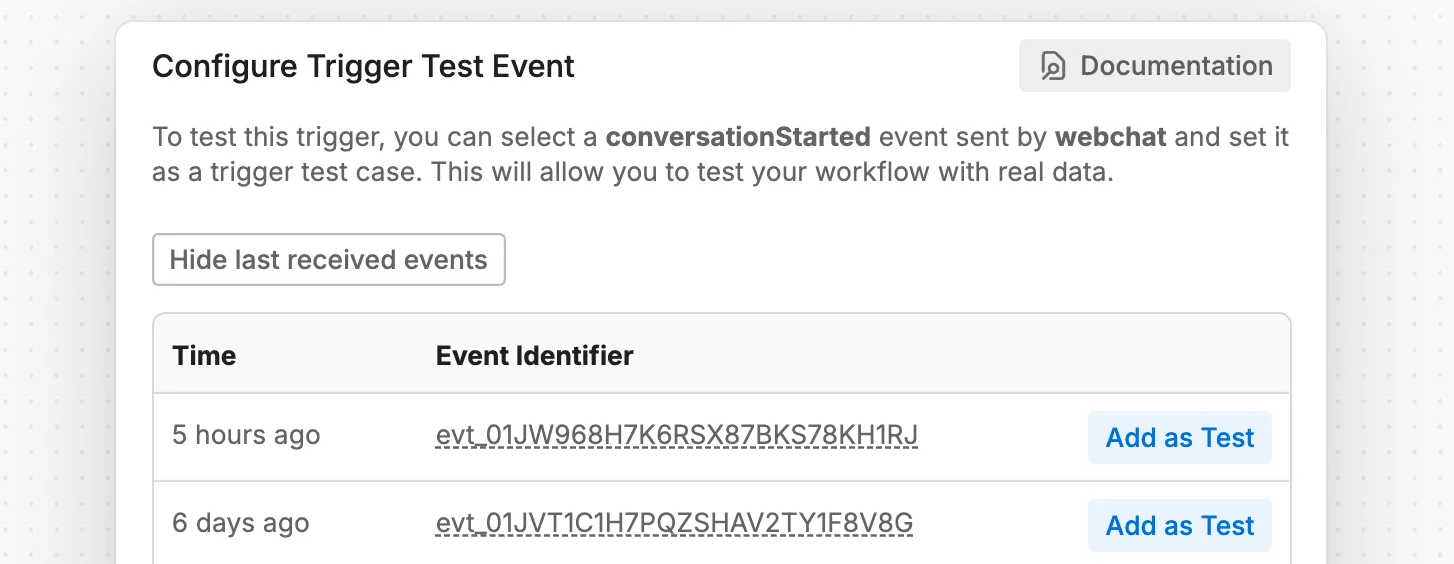
For the Conversation Started Trigger, each of these is a conversationStarted event, which fires every time a user starts a new conversation with your bot.
You can use any one of these events as a dummy event to test your Trigger. Just pick one and select Add as Test. Then, select Save.
If there are no events available to choose, make sure your bot is published and that the event your Trigger is listening for has occurred at least once before.
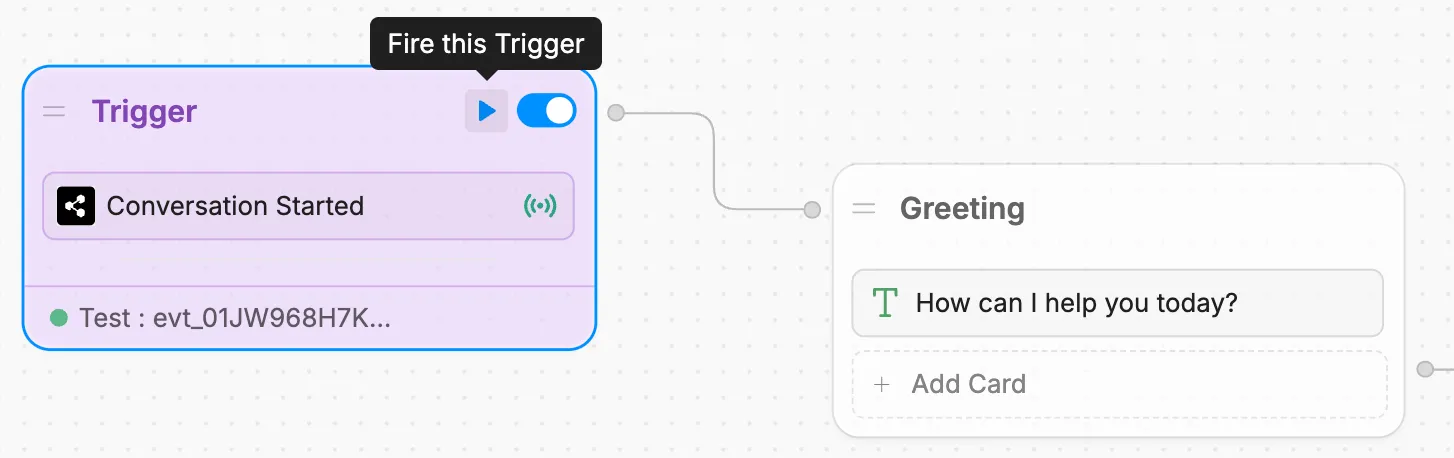

Webchat Triggers
Studio comes with some built-in Triggers that let your bot react to certain events in Webchat:
Conversation Started
For a step-by-step guide to the Conversation Started Trigger, check out the Webchat documentation.
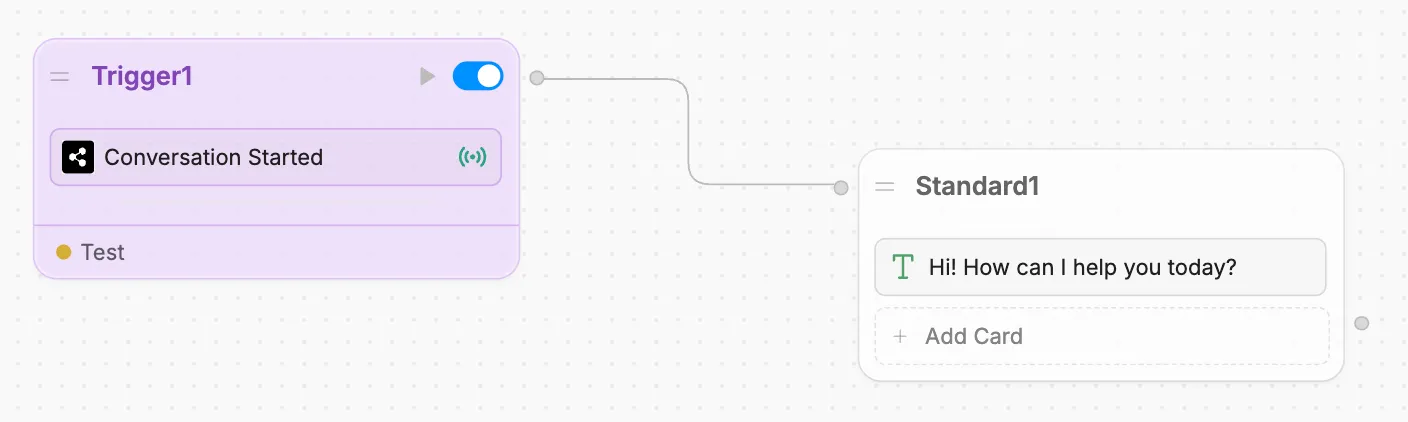
The Conversation Started Trigger only executes when a user starts a new conversation in Webchat. You can use it to make your bot do something as soon as a user starts a new conversation.
For example, sending a welcome message:
Custom Trigger
For a step-by-step guide to using Custom Triggers, check out the Webchat documentation.
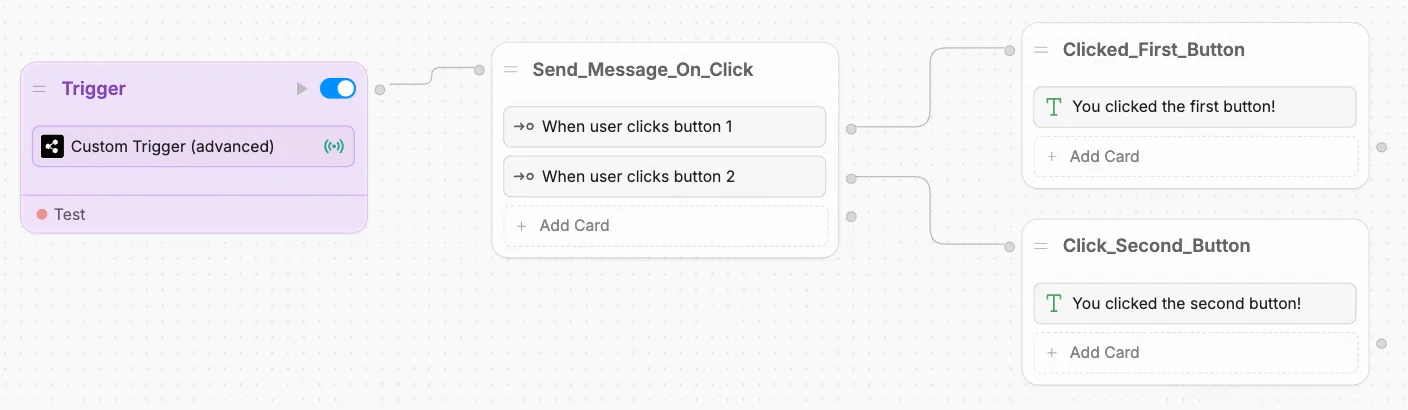
You can use Custom Triggers to make Webchat react to custom events from your website. This is useful if you want to make your bot more responsive to the rest of your user experience.
For example, if you want your bot to respond when a user clicks a button:
Fixed Schedule
Check out our step-by-step guide on using the Fixed Schedule Trigger.
You can use the Fixed Schedule Trigger to execute some part of your Workflow at a specific time. This is useful if you want to send reminders, notifications, or other time-sensitive messages to users.
Integrations
Some integrations include their own Triggers. When you install an integration that has Triggers, they’ll become available in the Triggers menu.
For example, the Zendesk integration comes with two Triggers—Article Published and Article Unpublished: